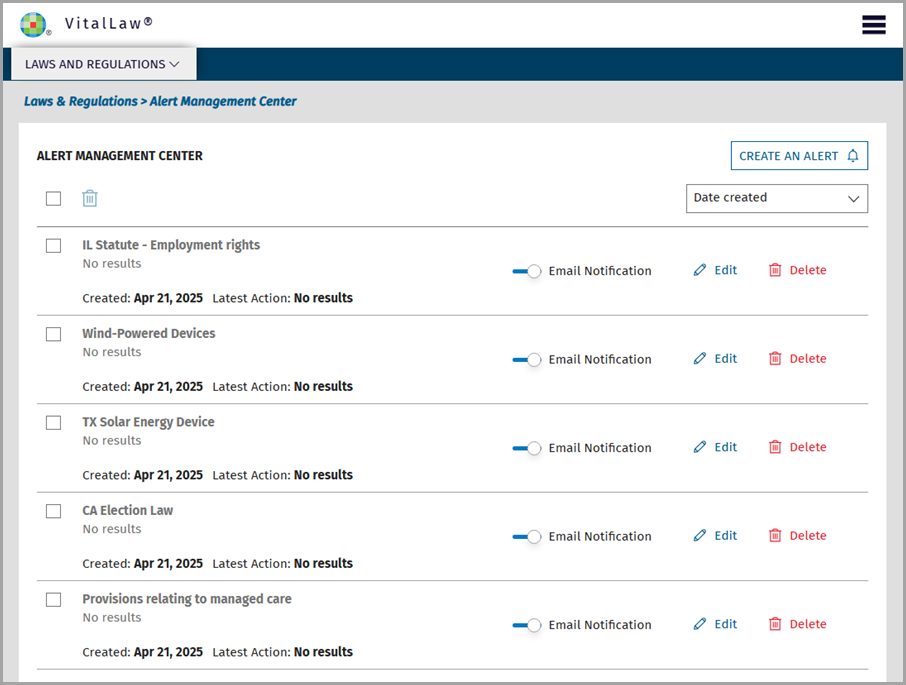
You can set alerts in two locations: (1) at the Laws & Regulations dashboard; and (2) at an individual document.
At the Laws & Regulations dashboard
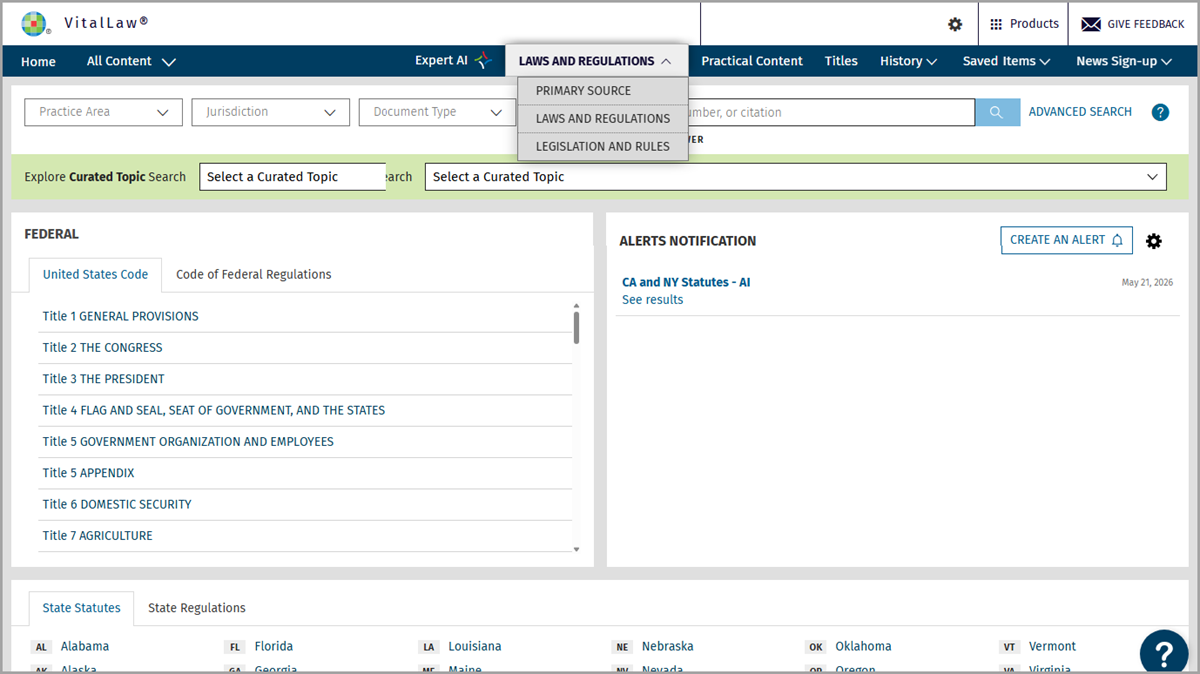
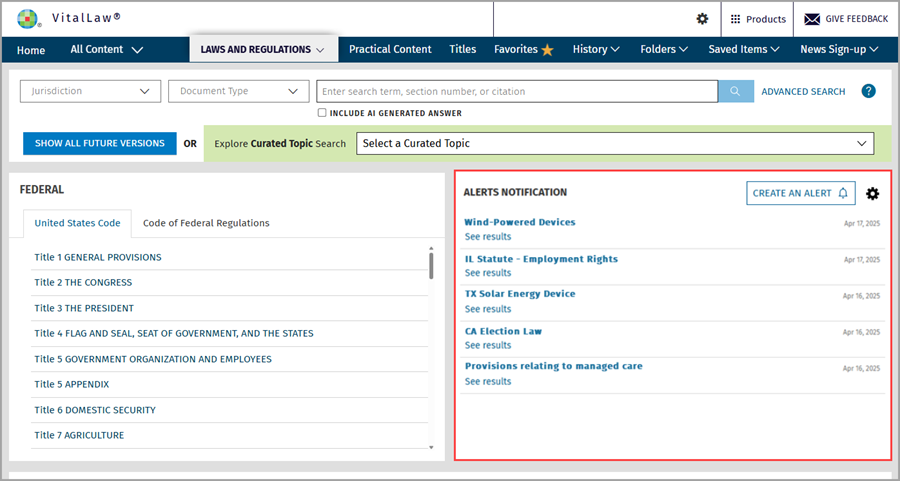
Click the Create An Alert button.
Provide your alert with a name.
Select your document types, jurisdictions, and keywords to narrow down your alert results (selection of at least one of these three criteria is mandatory).
Choose whether you want to receive emailed alerts or see alert results only in the Alerts Notification panel.
Click Save to confirm your alert.
At an individual document
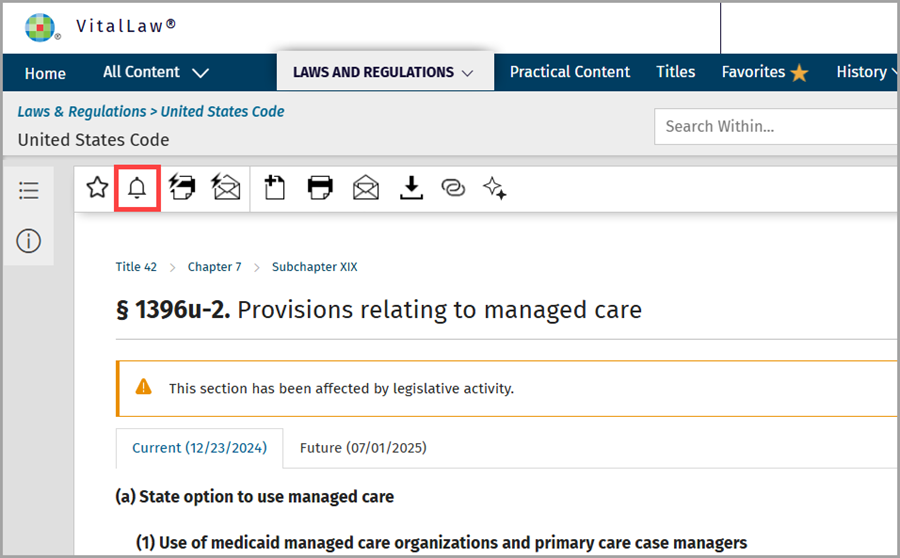
You can set an alert on an individual statute or regulation by clicking on the bell icon on the document view page and then giving your alert a name. You can also choose to receive email alerts or only see alert results in the Alerts Notification panel of the dashboard.
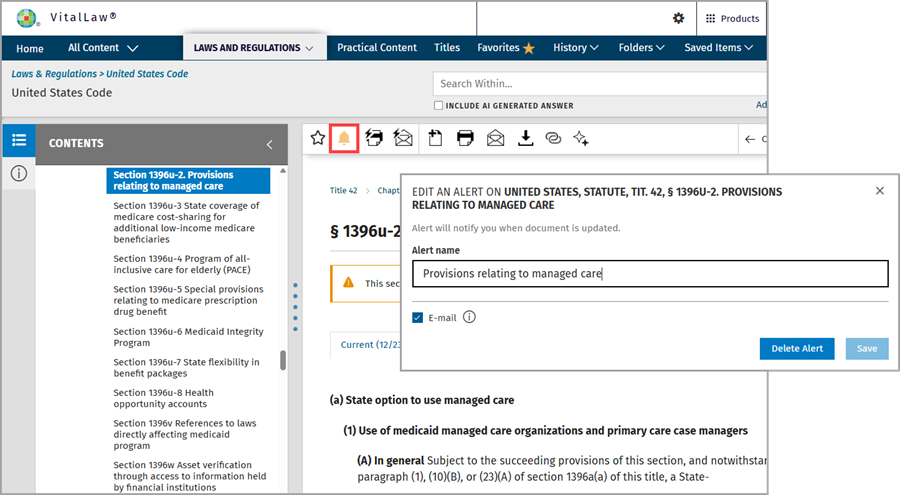
Once the alert is created, the bell icon turns yellow. Clicking the yellow bell, from the document view, allows you to edit the alert name or delete it.
View Alert Results
Once you have saved your alert, you can view the results via the Alerts Notification panel of the Laws & Regulations dashboard. Only those alerts with results are displayed. Simply click "See results" to view the list of statutes or regulations that match your alert criteria.
Alert Management Center
Access all the alerts you have created by clicking the gear icon in the upper right corner of the Alerts Notification panel.
The Alert Management Center allows you to sort, edit, or delete your alerts. You can also create a new alert from within the Center.