

From the VitalLaw® Legislation and Rules dashboard, you can quickly compare two versions of a piece of legislation using our Redlining feature. Redlining allows you to easily identify even the smallest changes to that legislation as it progresses.
Turn on Legislation Redlining
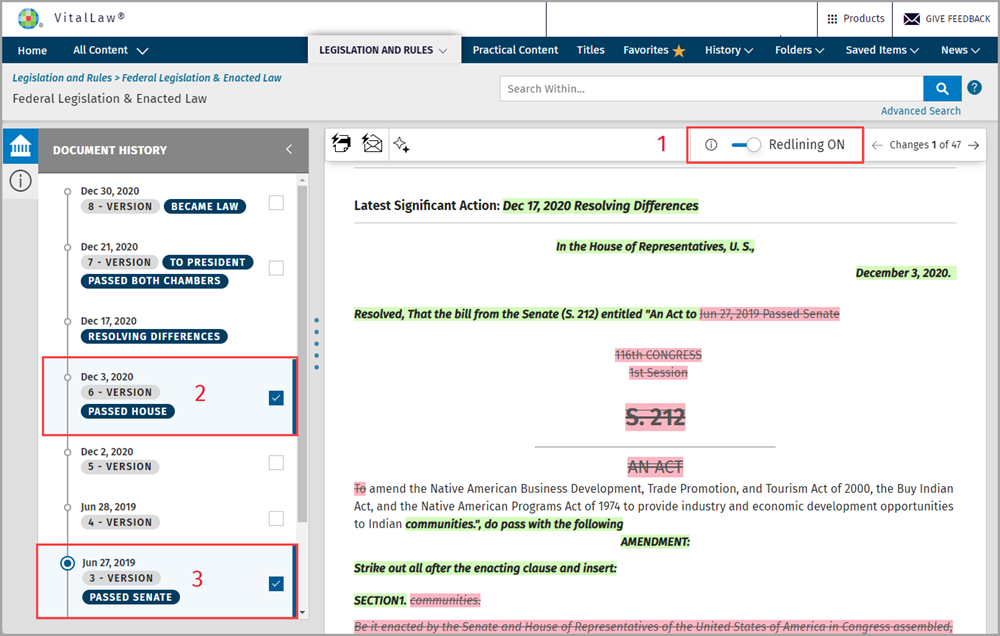
Click the Redlining Toggle to ON.
Checkbox options will appear next to all text versions of that legislation, select the first version you would like to Redline compare by checking the corresponding box.
Select the second version you would like to compare, and a Redline version marking up the oldest version you selected against the newest version will display in the viewing pane to the right.
Note: The version with the oldest date will always be marked up with changes from the most recent version you selected (stricken text or deletions will appear in red, and newer text or additions will appear in green).
Tip: Only two versions of any piece of legislation can be Redline compared at a time, please select or deselect the checkboxes to compare different versions.
Turn off Legislation Redlining
Click the toggle in the upper right-hand corner of the document panel to turn it off.