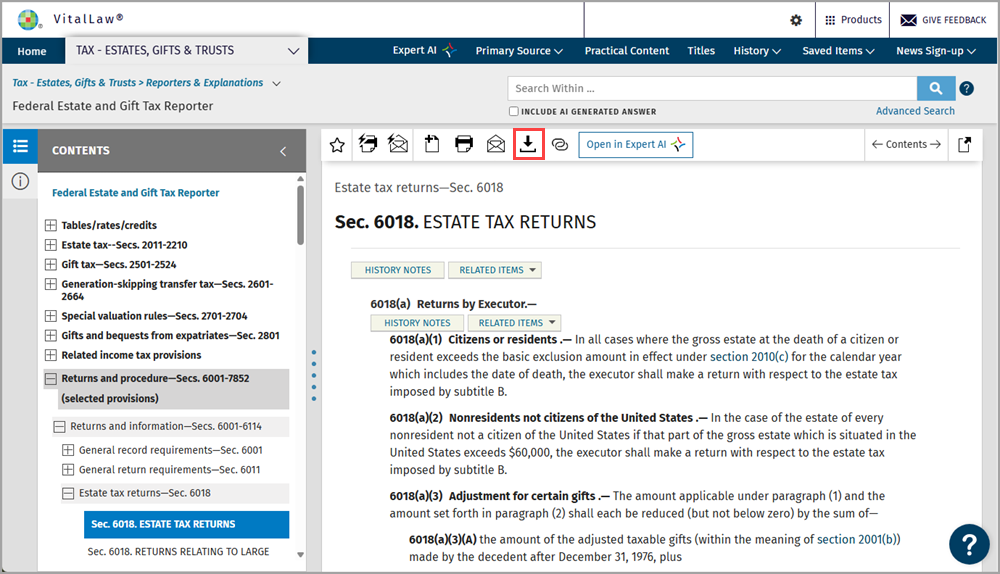
At the document, click the download icon.
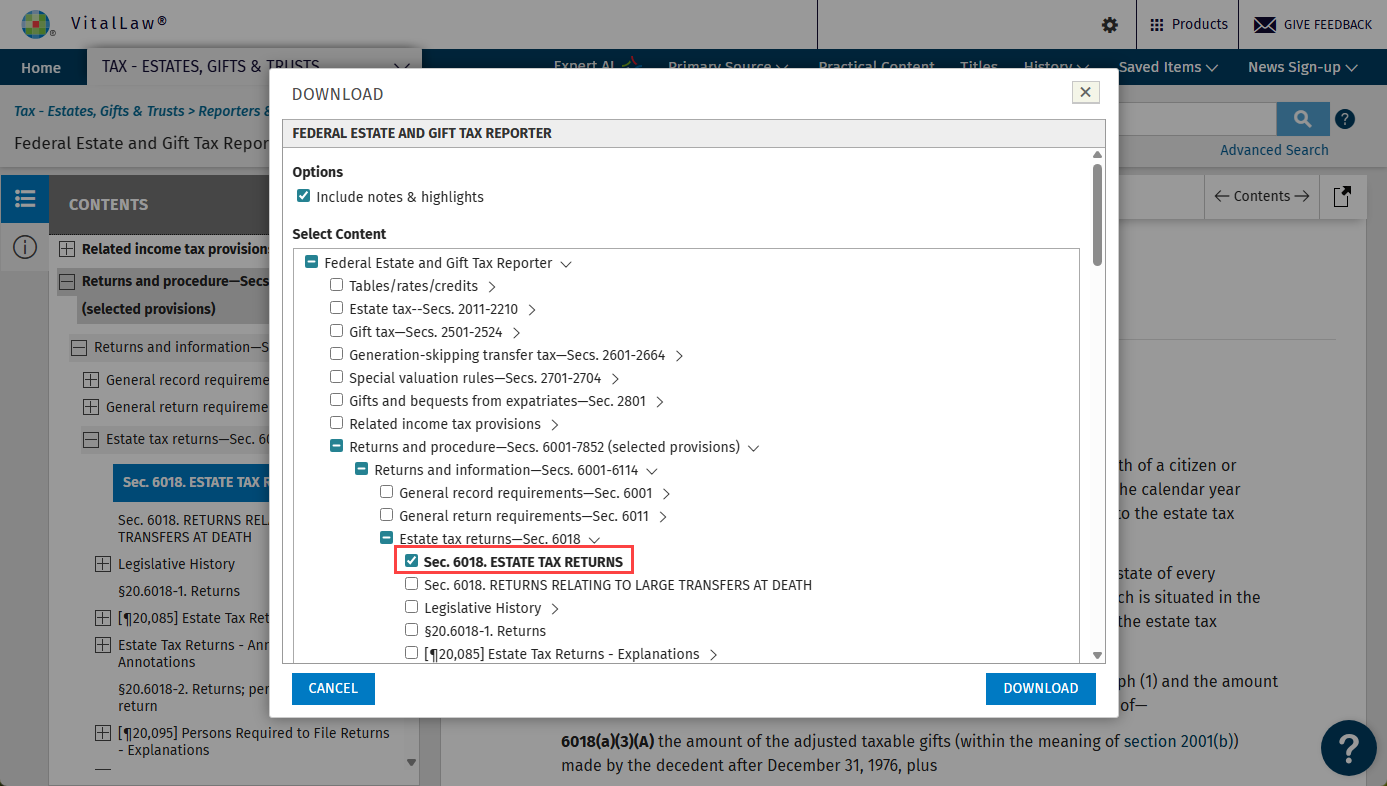
The download window appears. Your document is selected by default but you can download additional documents by selecting them.
Once you click the button, the PDF version will automatically download. Typically files will appear in your Downloads folder but you may save them in another location.
Find the document you downloaded.
Right-click on the file and select Open with from the menu.
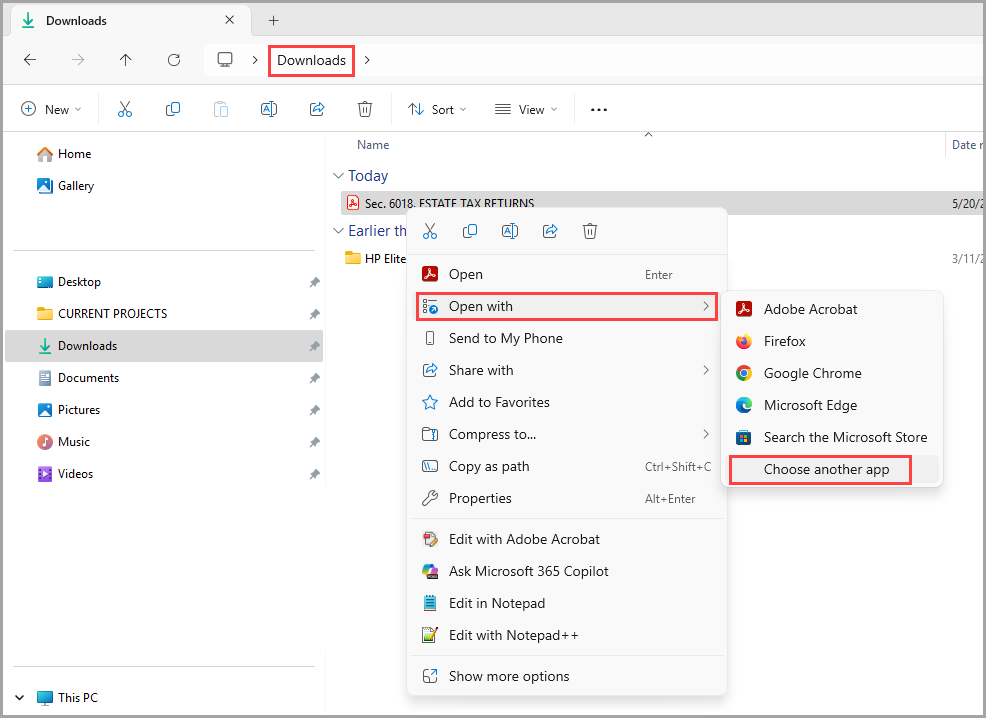
If you do not see Word in the list of apps, select Choose another app.
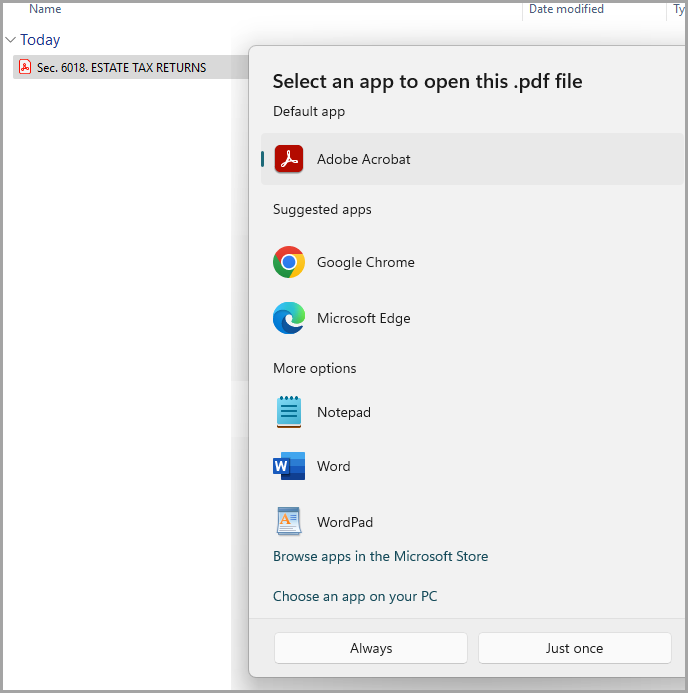
If Word is not an option, select Choose an app on your PC and browse for Word.
Additionally, you have the option to Always open PDF files in Word or limit it to Just once.
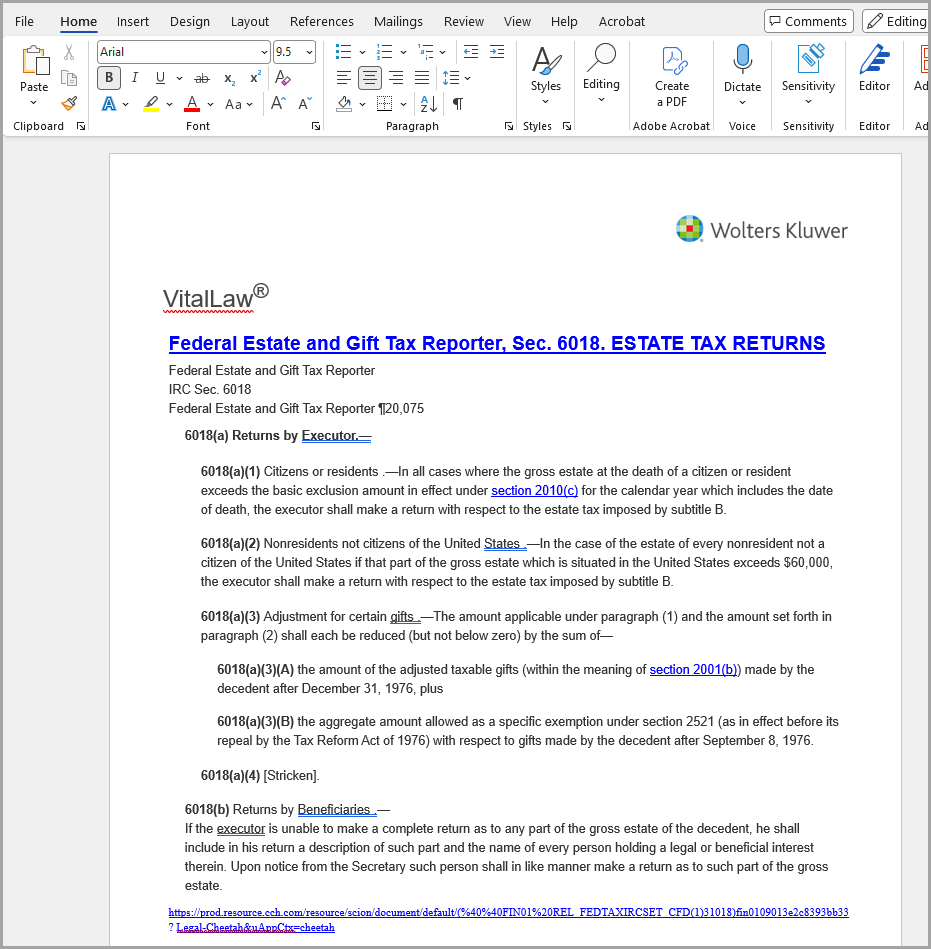
Once you've selected Word, your downloaded PDF will open in *.docx format