

VitalLaw combines the power of Generative AI and your simple keyword search to yield semantically matched answers drawn from across your subscribed content, with direct links to the relevant source documents. This enables you to quickly pinpoint key insights, saving up to 90% of traditional research time.
Adding AI to your Keyword Search
First, check the box at INCLUDE AI GENERATED ANSWER found under the search field to ensure AI generated responses are included in your search results.
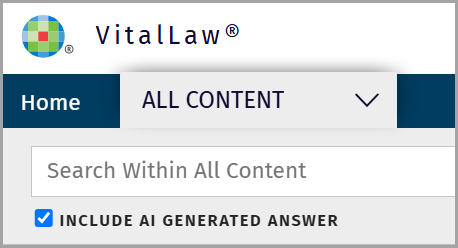
Next, conduct a search using everyday, conversational language. VitalLaw® Expert AI analyzes your search and presents you with a summary.
NOTE: While VitalLaw® Expert AI can work with a search that includes connectors and wildcards, results may be inconsistent.
Editorially Curated Answer
For key topics, our Editors have composed a robust set of Questions and Answers. VitalLaw® Expert AI uses semantic language understanding to analyze your query and check for matches to existing Editorially Curated Answers. In this way, the Answer is built using both Wolters Kluwer’s primary and secondary content as well as our 'editors in the loop'.
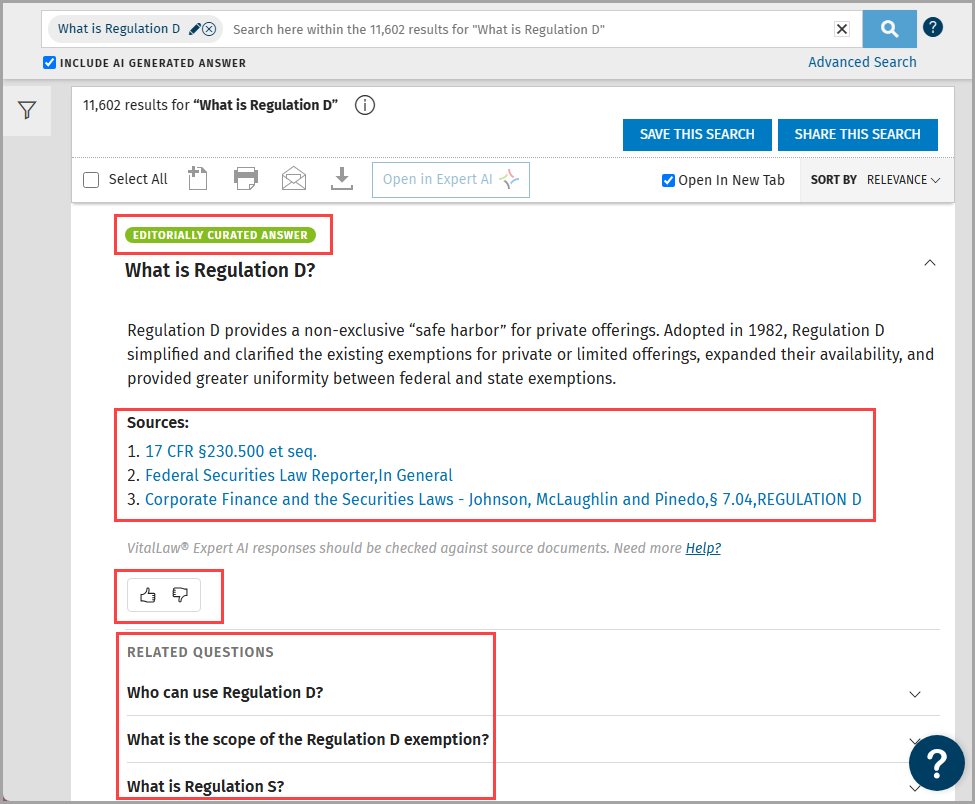
Sources provides linkable references from which the answer was drawn. Click to open each citation in its own browser tab.
NOTE: For Editorially Curated Answers, source citations are collected from the full VitalLaw® library - regardless of subscription. As a result, while providing the best answer, the links may direct you to content outside of your subscription.
Thumbs Up/Down icons allow you to react to the answer. Your responses are analyzed by our editors to improve our results and answers.
Related Questions allow you to refine the focus and uncover facets that might easily have been missed otherwise. These questions have their own citations giving you the chance to open and review a variety of related primary and secondary content without the need to go back and modify the search.
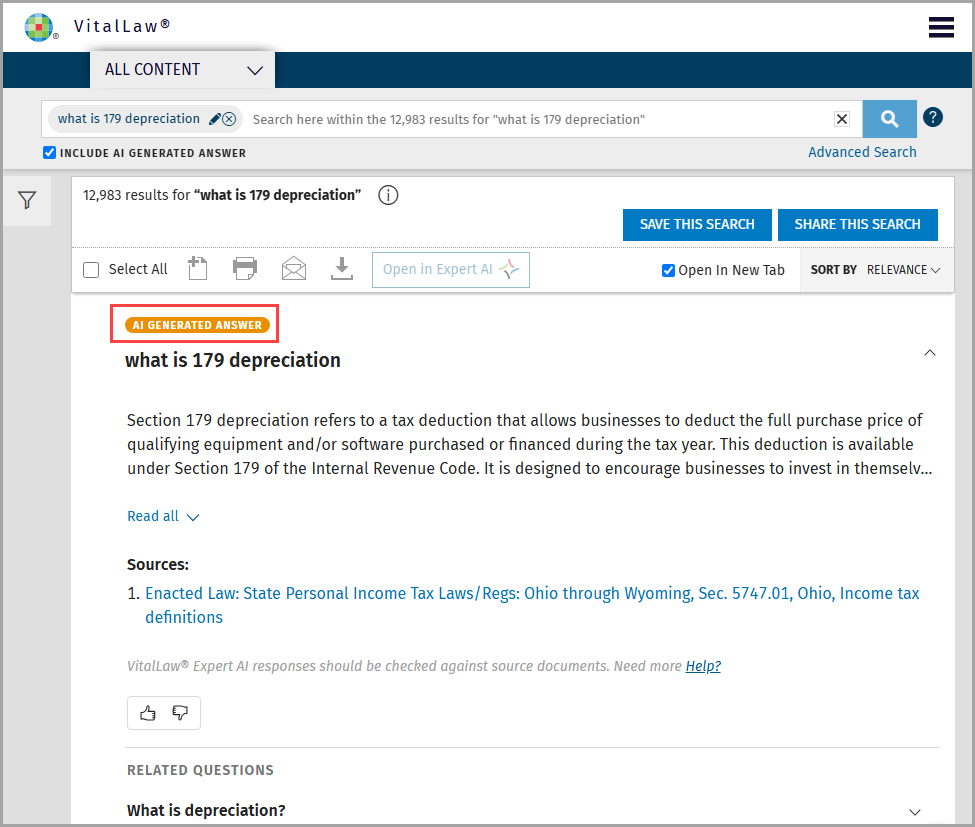
AI Generated Answer
Depending on the search expression, VitalLaw® may present you with an AI Generated Answer along with linkable Sources pulled from your subscription and Related Questions.
Turning On/Off Editorially Curated and AI Generated Answers
You may turn on or off Editorially Curated and AI Generated Answers – at any time during your research session - via the checkbox found under the search field. If the box is not checked, Editorially Curated and AI Generated Answers will not be visible post-search. Your preference will remain in effect even after you logoff and start a new session - until you check or uncheck the box again.
Using Expert AI at Search Results
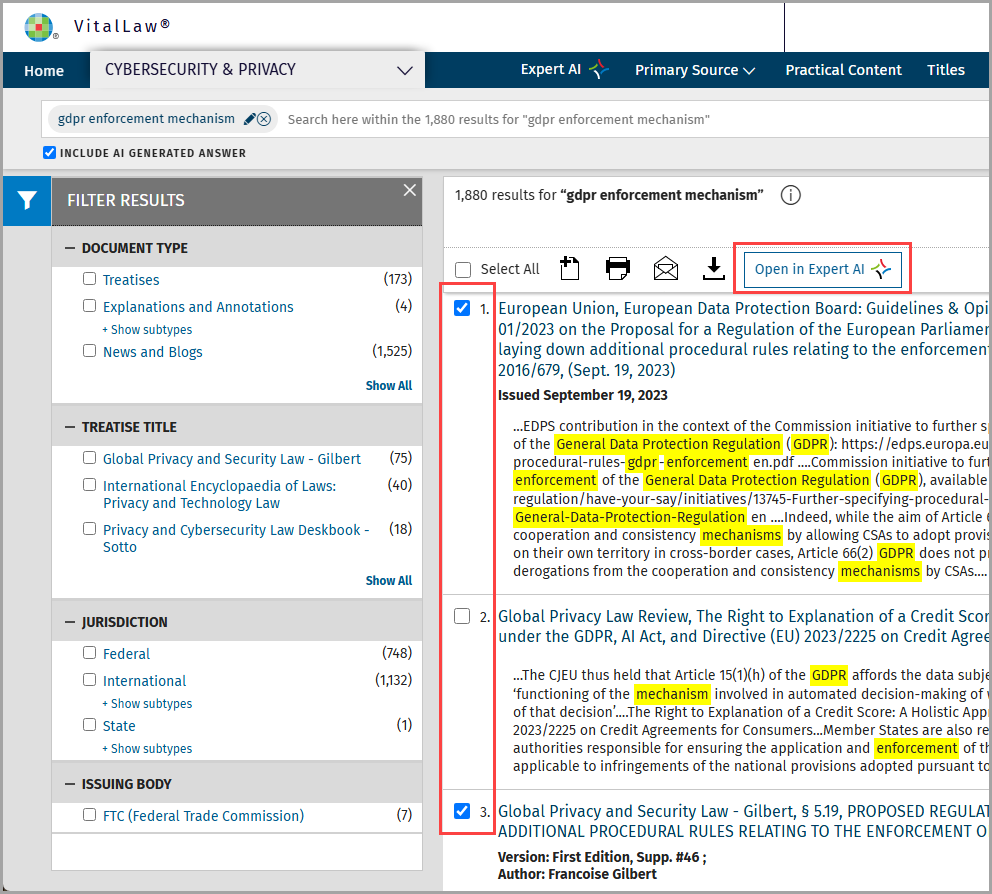
Once you've performed a search, select from one to ten documents (10 document limit) from the search results list and click the Open in Expert AI button activating VitaLaw® Expert AI.
NOTE: The Open in Expert AI option is only active once you have selected a document from the list or you are viewing a single document.
VitalLaw® Expert AI lists the document(s) you selected and provides next step options including document summarization, related questions and answers, and Interactive Chat.
The Summarize Documents feature enables you to efficiently see a short and relevant summary of your issue from within the selected documents.
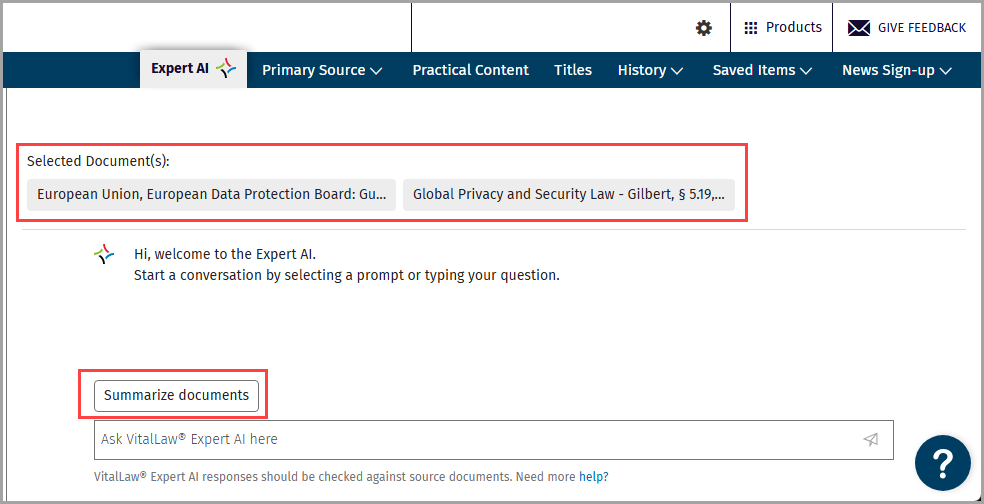
Once you Summarize documents, you will see suggested questions prompting you to go deeper, ensuring no stone is left unturned.
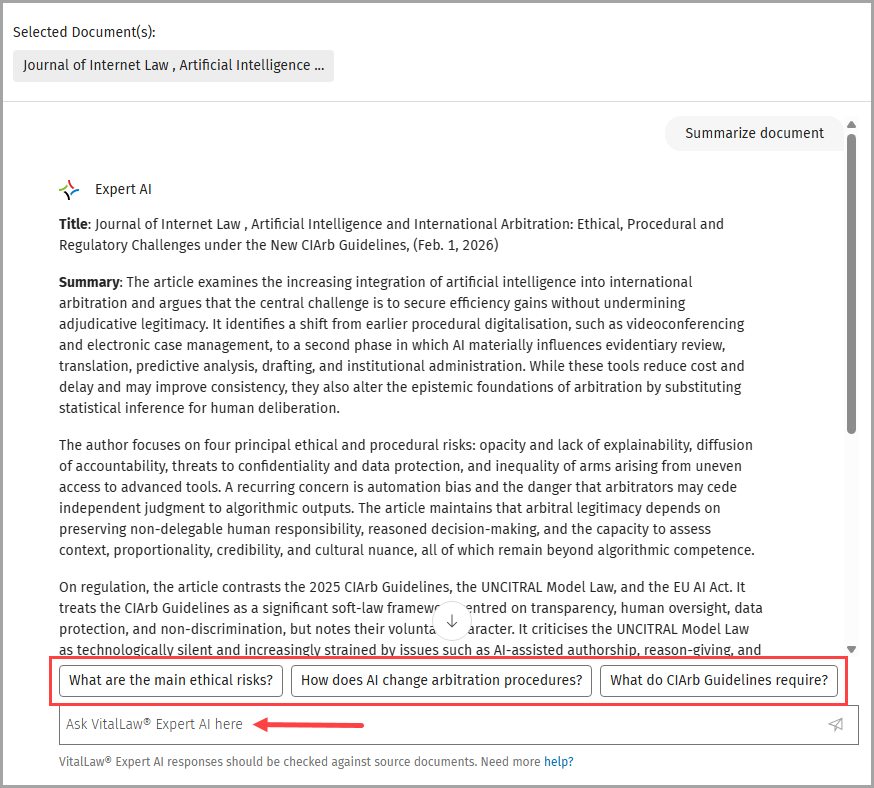
Interactive Chat allows you to interact with Expert AI via prompts. Simply type your prompt in the Ask VitalLaw® Expert AI here field and click the chevron. You can ask more specific questions or request additional information, such as a checklist or a bullet points, related to the selected documents.
NOTE: See the article Writing Effective Prompts for examples, guidance, and best practices when interacting with VitalLaw® Expert AI.
Using Expert AI with a Single document
If you want to interact with one specific document, simply navigate to the document (via browse or search), and click Open in Expert AI. Expert AI will provide next steps and suggested questions to help you gain deeper and more meaningful insights.
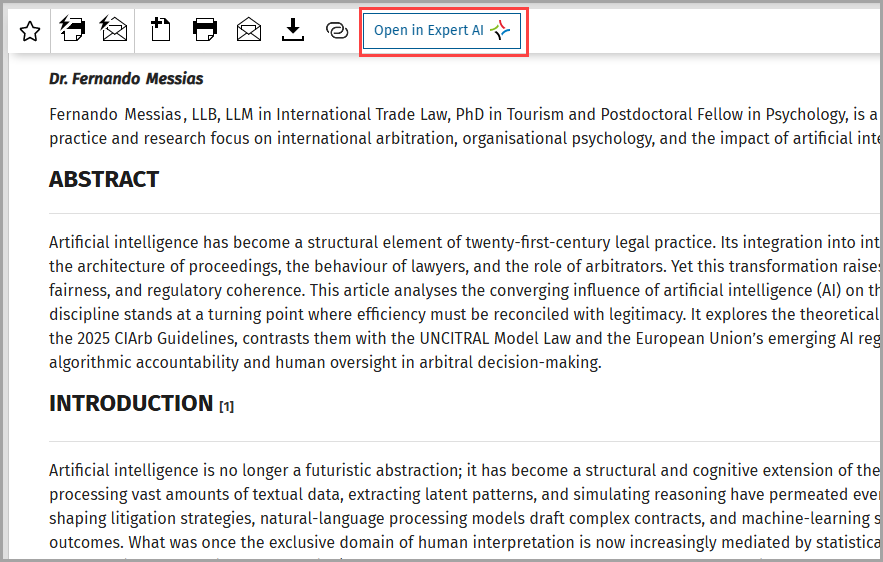
NOTE: Summarize Document is especially helpful when you are working with a very long document and wish to read a robust, high-level overview.