

To access your Site Preferences:
Click the gear icon located next to your email address and select Site Preferences.

To change your default Home page:
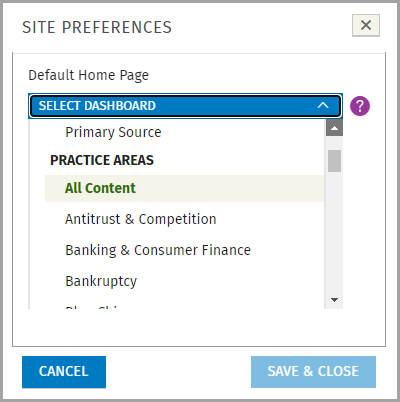
At the Default Home Page drop down menu, select a Resources or Practice Areas dashboard from the menu to set it as your default.
Click the Save & Close button.
Test the new setting by clicking Home.
To access any other practice area that is not your default home page, click on the practice area tab to view the Session Navigator drop-down and select a different practice area.
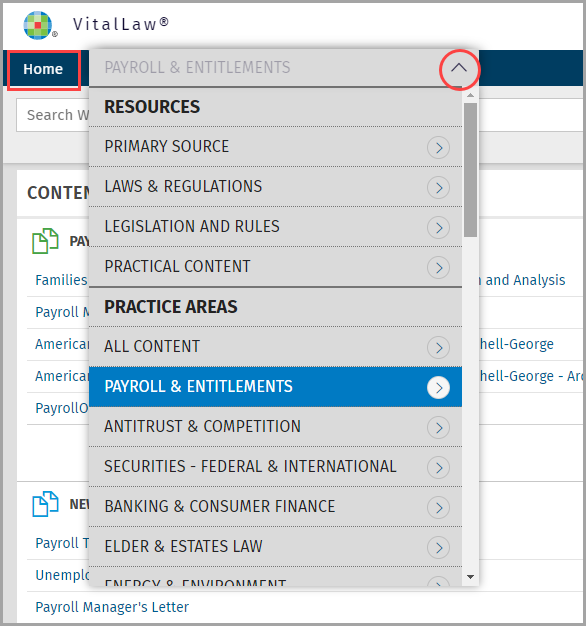
TIP: The All Content dashboard lets you search across all practice areas.
Note: When you log out of VitalLaw, any changes you made to your Site Preferences are retained the next time you log in to VitalLaw.
Show me how (video)