Manage the publications that appear under each Group
Click the gear icon  (or the CUSTOMIZE button when in SEE ALL mode) to view SELECT DASHBOARD CONTENT.
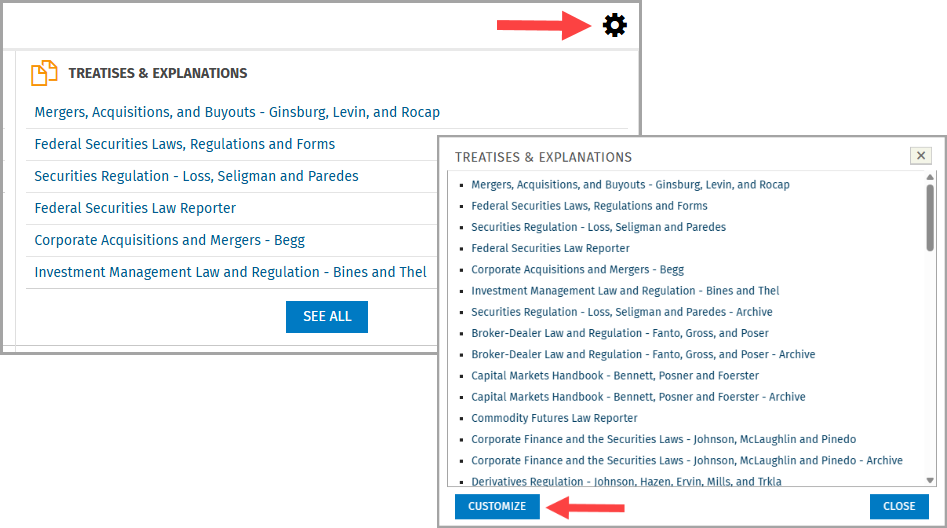
Select a dashboard from the Group drop-down menu. The available publications for that group will appear.
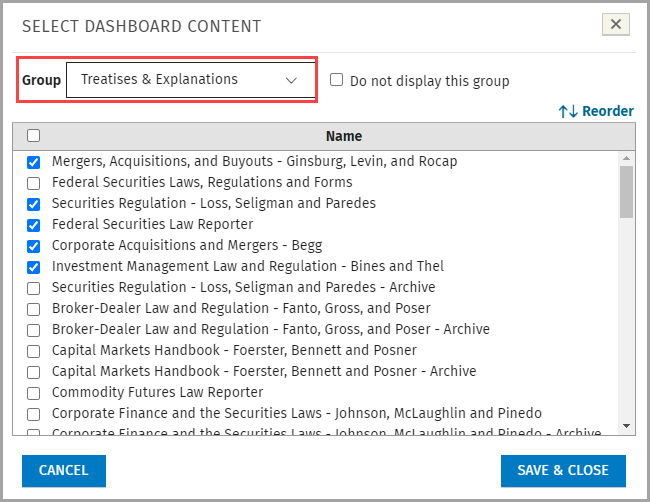
Check the box for content you want to display. Uncheck boxes for content you do not wish to display.
Notes:
By default, several items are already selected.
To hide the group entirely, remove all checks or select Do not display this group.
Use Reorder to rearrange the order of the publications.
Click the SAVE & CLOSE button to save your changes.
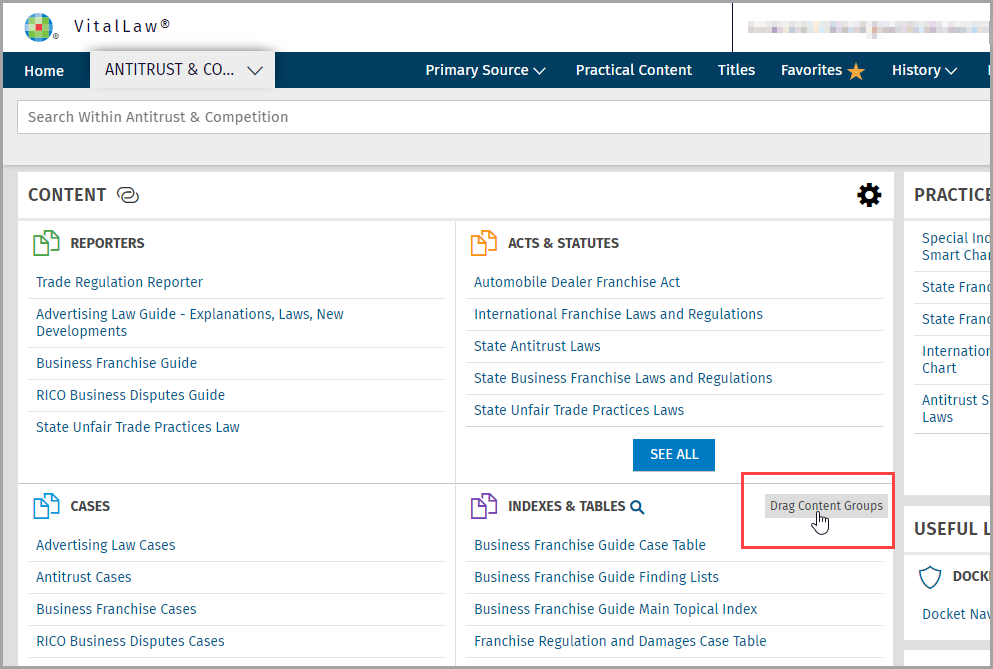
Rearrange groups within Content
When dashboard Content is comprised of multiple groups, you can hover your cursor in the top right corner of a group, click Drag Content Groups and move the location of that group.
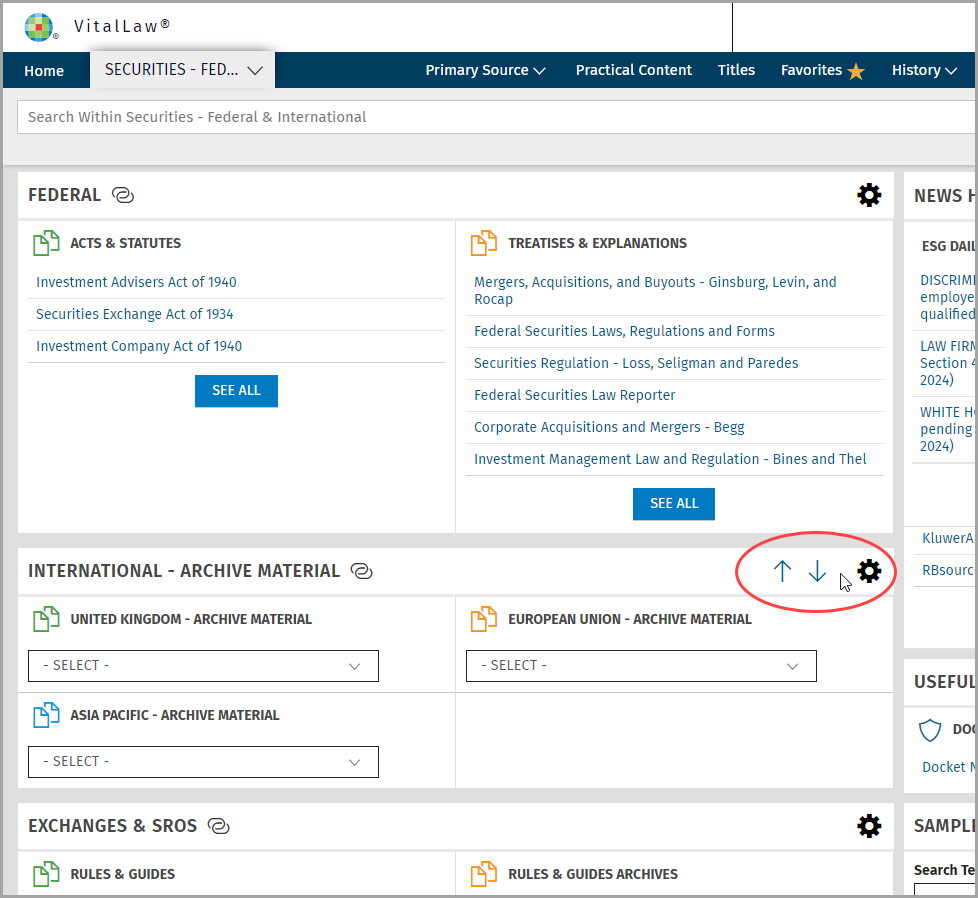
Rearrange Content within Dashboards
When dashboard Content is organized into multiple Content Group boxes, such as with the SECURITIES - FEDERAL & INTERNATIONAL practice area, you can hover your cursor in the top right corner of a Content box and click the up/down arrows to change the position of that box.