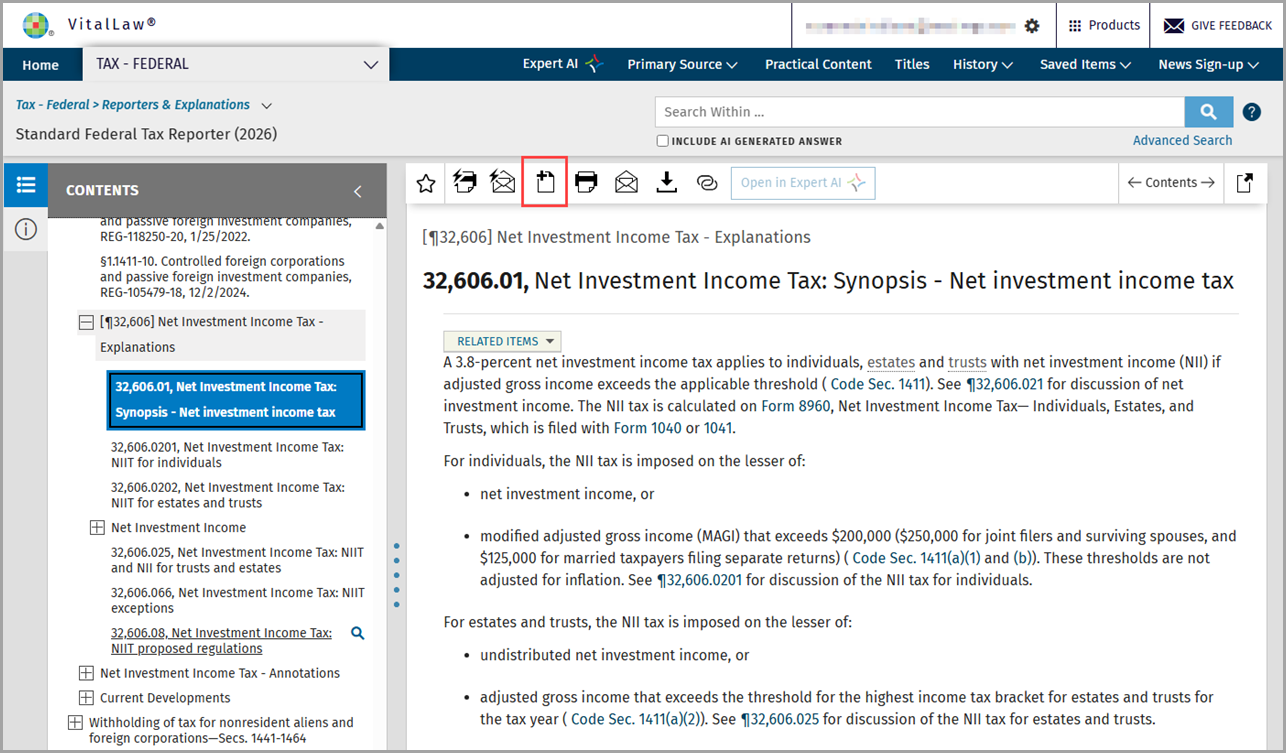
Add a document to a folder
With the document view open, click the Add to icon that appears along the top.
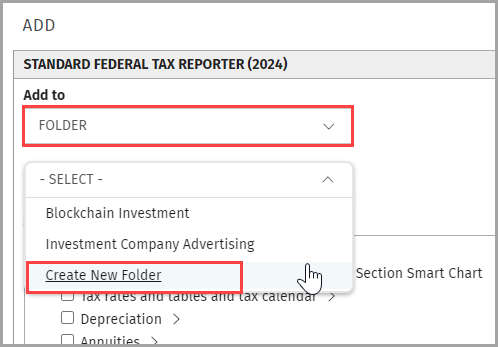
Select Folder from the drop down options.
Add the document to an existing folder or click Create New Folder.
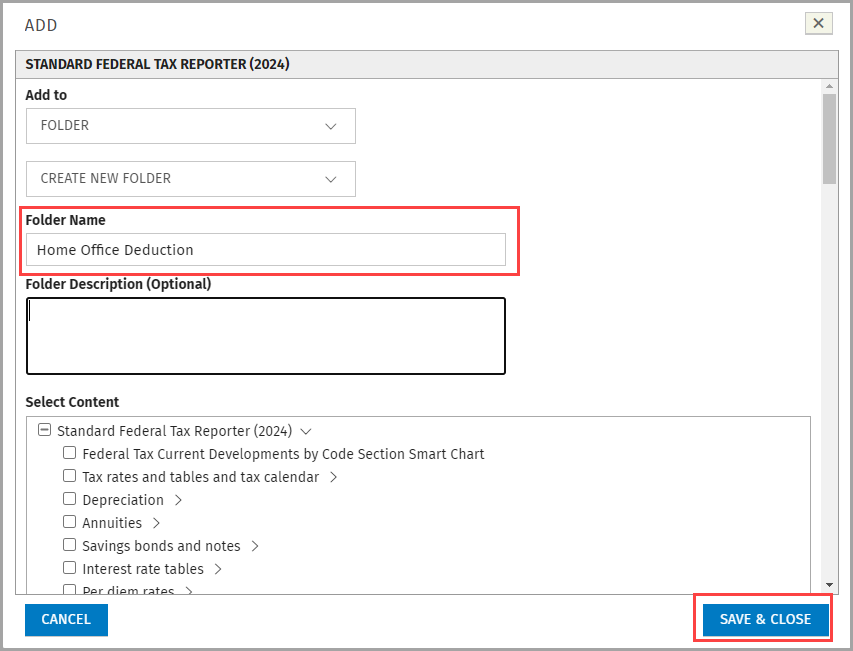
Provide the folder with a name and optional description. Click Save & Close.
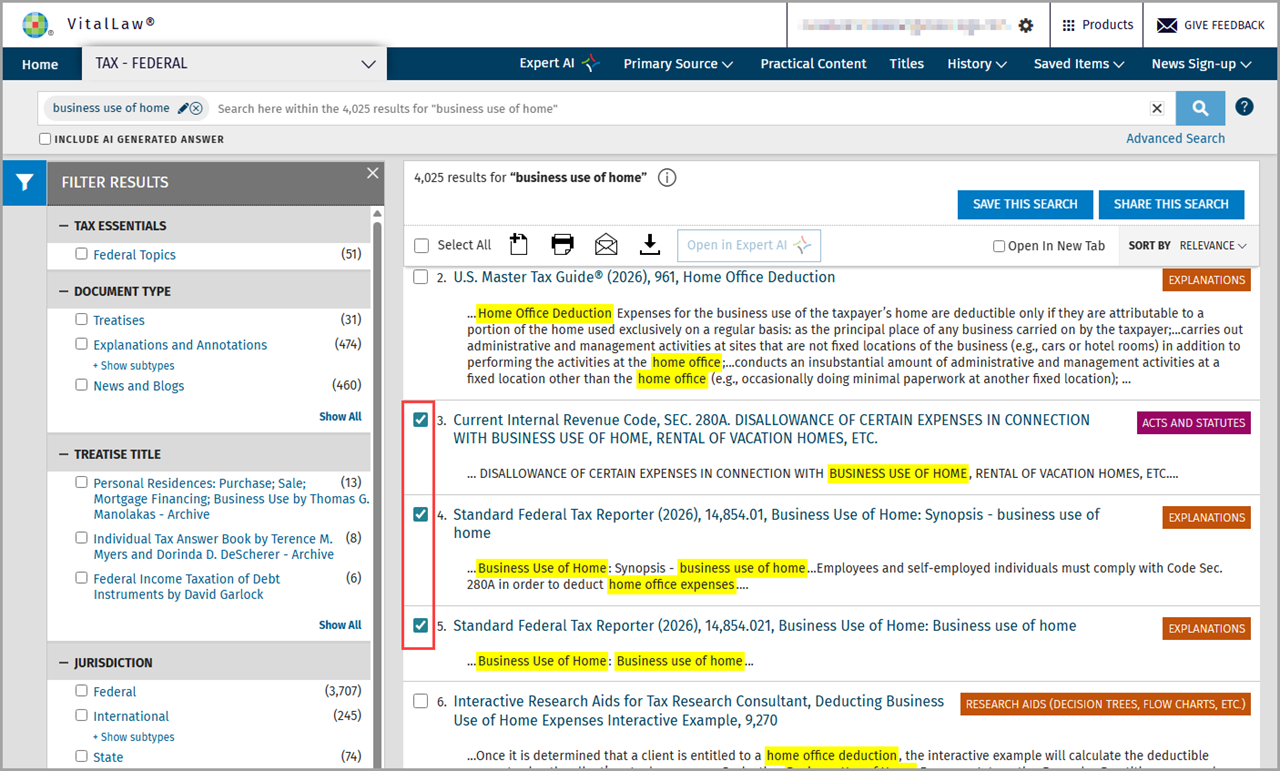
Add several documents from a search results list to a Folder
Select the documents you wish to store and click the Add to icon. Then, select the existing folder or create a new one.
Retrieve an existing folder
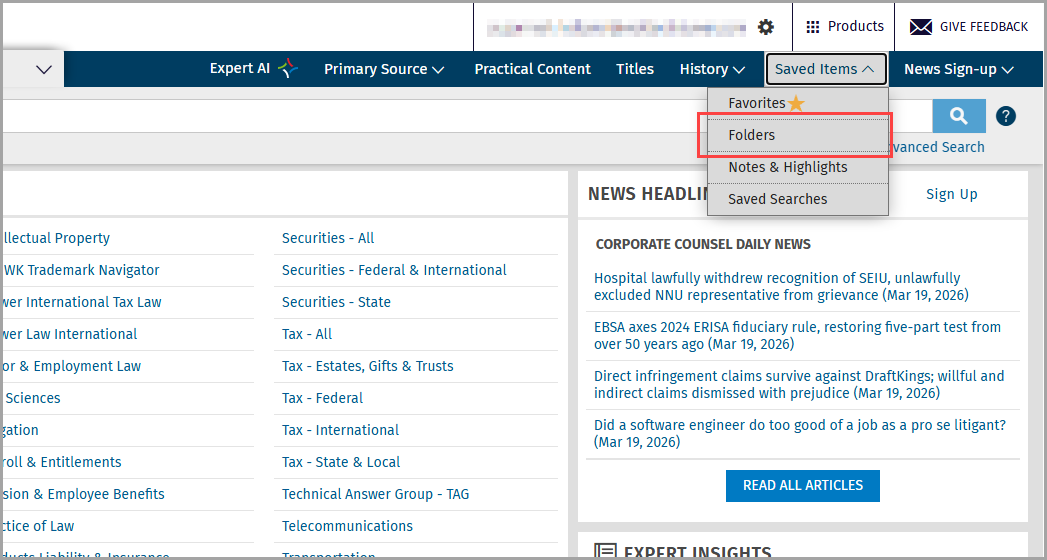
Click the Saved Items dropdown and select Folders.
Choose your folder from the dropdown at the upper left.
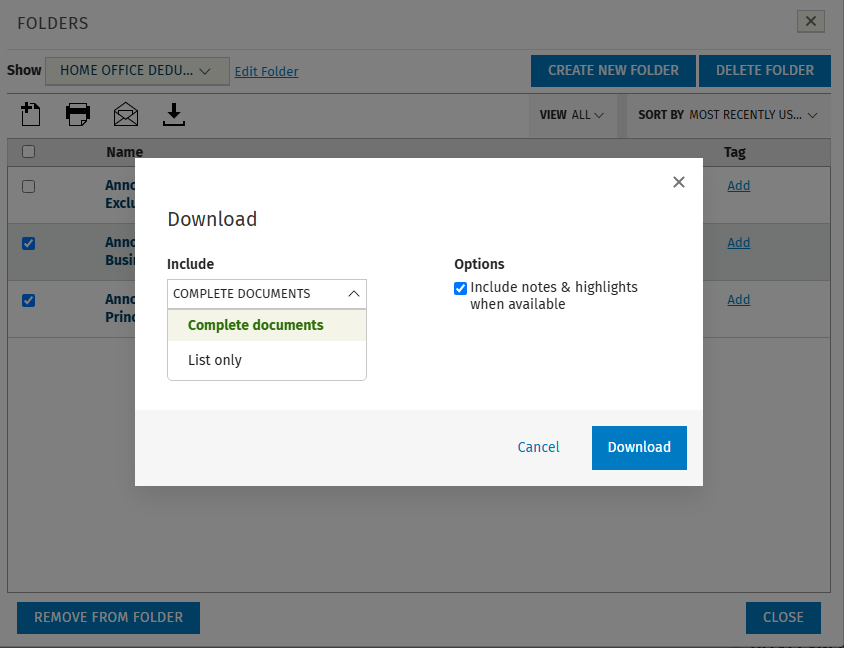
From the open folder, you can select documents to remove, print, email, or download. You can also sort the contents, add tags to documents, edit the folder, or delete it.
NOTE: When you choose download, email, or print, you also have the option to include:
Either the Complete documents or the List only; and
Any notes & highlights you have added to the document