Welcome to VitalLaw!
Two dashboard experiences are available based on your subscription. Both experiences maintain access to traditional VitalLaw navigation and subscribed content while providing greater flexibility in how customers choose to research.
VitalLaw Home Dashboard (Search-Focused Experience for non-Expert AI Subscribers)
The new Home dashboard has been designed to help you start your research faster with a more streamlined, search-focused experience while maintaining easy access to the trusted content and resources you rely on every day.
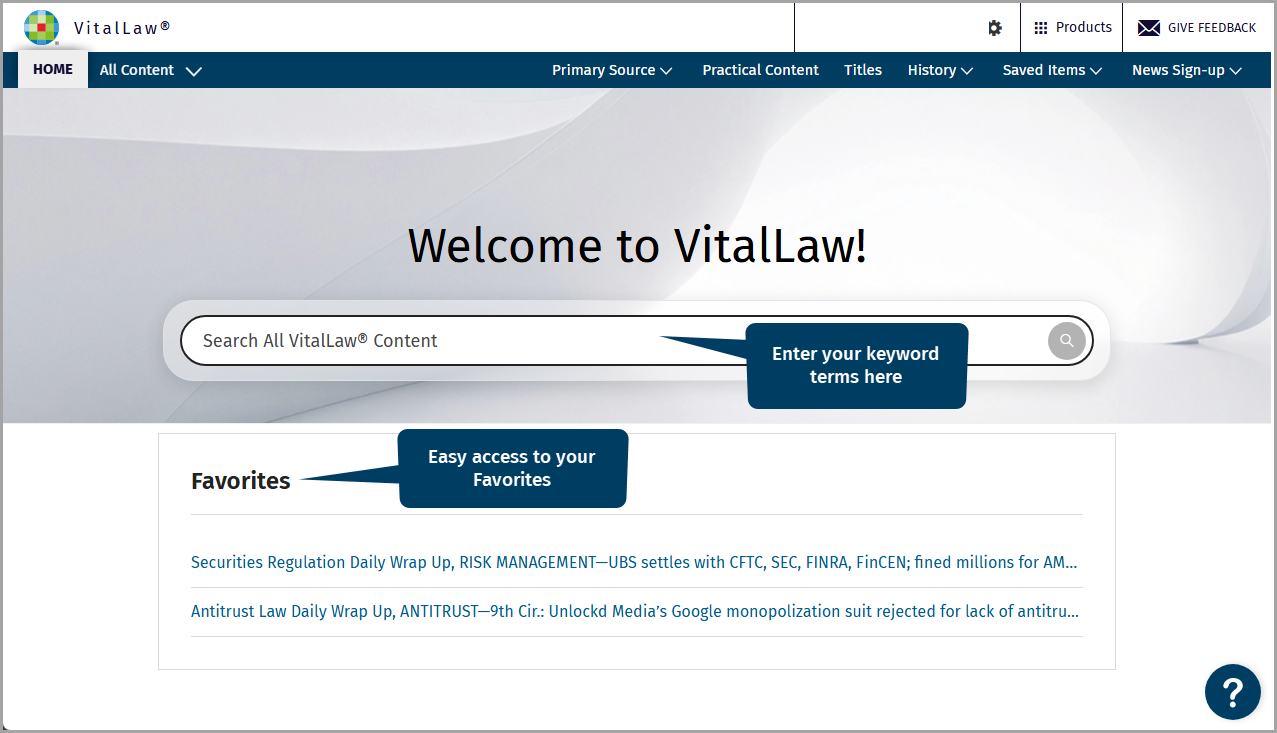
Easily access your Favorites directly from the home dashboard.
Simply enter your keywords for a search results list of matching documents.
VitalLaw AI-First Home Dashboard
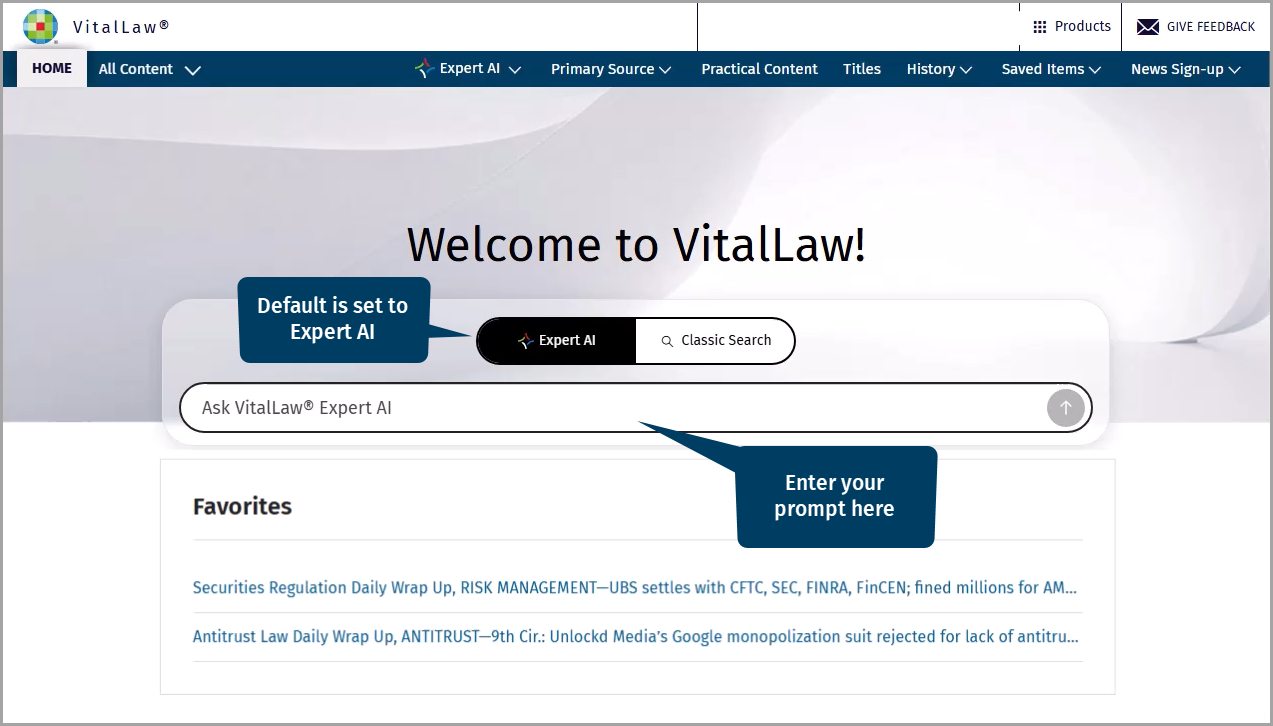
The AI First Home Dashboard places VitalLaw Expert AI at the center of your research experience, making it easier to start with a natural language question and quickly receive trusted, content-backed answers.
View Subscribed Content
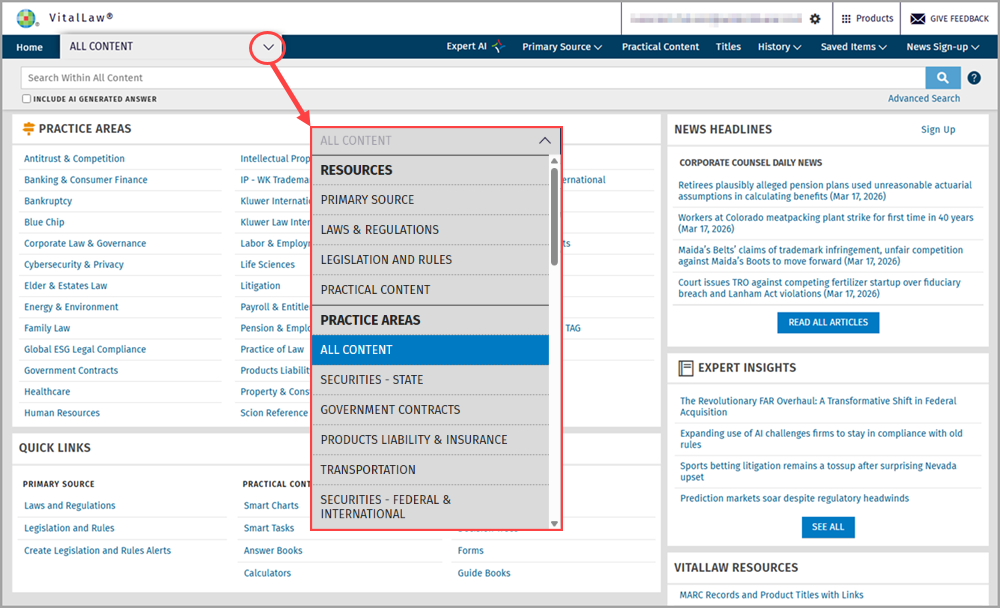
To view your subscribed content, use the dropdown and navigate to the All Content or a specific Practice Area dashboard.
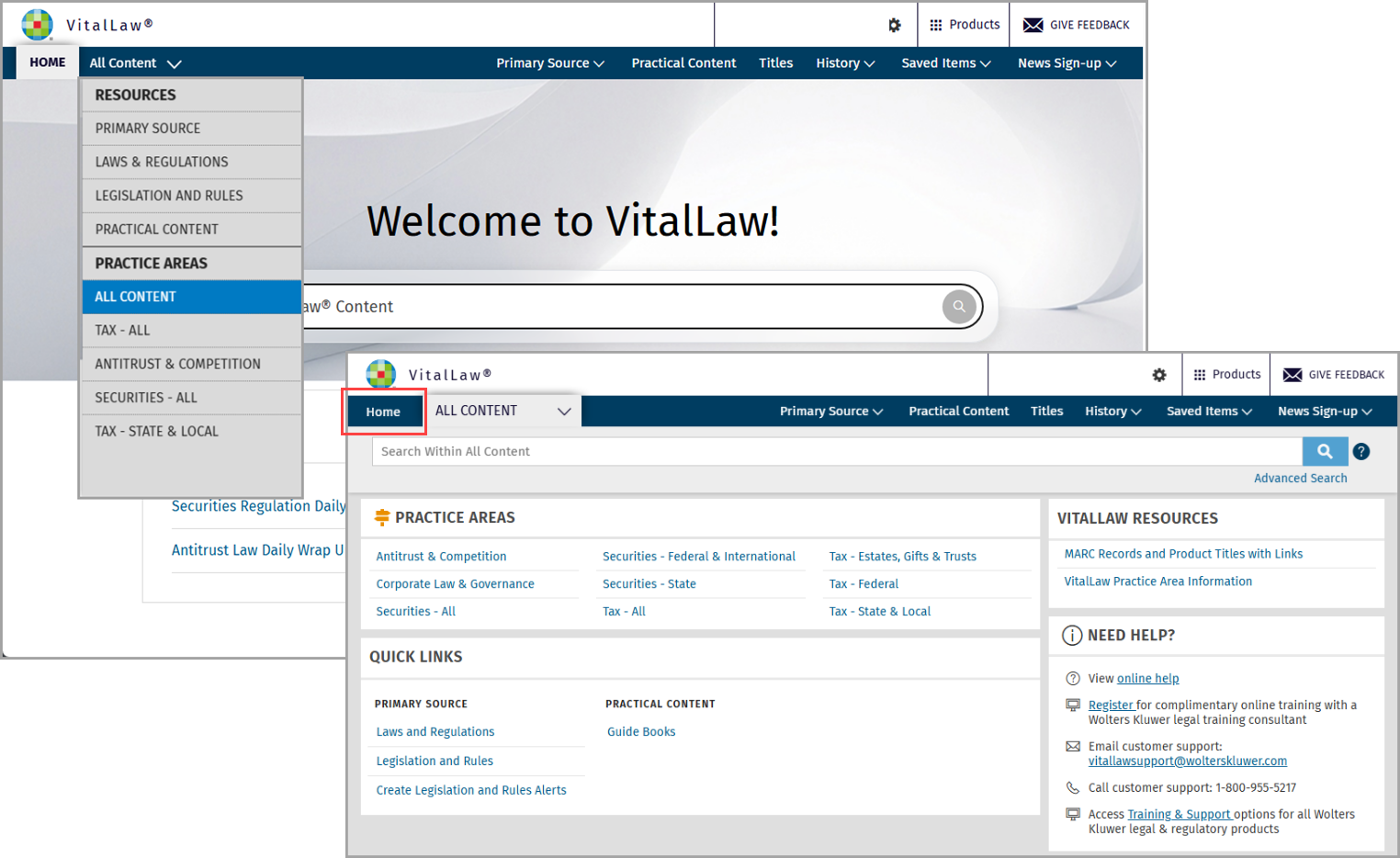
The All Content page provides access to your Practice Area dashboards, Quick Links to Primary Sources, Practical Content, News, and more.
Click HOME to return to the "Welcome" dashboard. If you prefer your default home page to be the All Content or a specific Practice Area dashboard, review Setting Your Default Home Dashboard.
Global Command Bar
The following global features - found on the command bar - are accessible from anywhere within VitalLaw®:

Expert AI For subscribers, engage with VitalLaw's Expert AI. See VitalLaw Expert AI for more information.
Primary Source
Laws and Regulations
Legislation and Rules
Practical Content All VitalLaw tools, calculators, Smart Charts, forms, checklists, and more, all in one location.
Titles Browse or search all publication titles within your subscription using the Titles feature. See Locate Content Using Titles
History Easily refer to your recent searches and viewed documents.
Saved Items
Favorites Retrieve often-used documents you've bookmarked.
Folders Save and organize documents you find during your research session. See Store your Research in Folders for more information
Notes & Highlights
Saved Searches View your saved searches, notes & highlights, and favorites.
News Sign-up Set up personalized email delivery of news and current awareness. See Subscribing to News for more information.
Search
VitalLaw® accommodates a variety of search styles from natural language to Boolean connectors. Type ahead suggestions automatically find the best expression for your search topic. Simply enter your search term(s) to quickly and easily find documents that match your specific search criteria. Learn more about searching by exploring the Searching in VitalLaw® section of the knowledge base.
Practice Area Dashboards
VitalLaw® is divided into thirty-five (35) separate Practice Area dashboards making it easy for you to locate practice area specific primary source, explanations, treatises, news, Practice Tools, and more all on one page. Your content is determined by your subscription.
Content
Browse content by clicking a link within any dashboard category. Quickly move between dashboards using the session navigator (shown below). Your most recently visited dashboard appears at the top.
TIP! Dashboard content can be rearranged so that your favorite publications appear at the top. See Customizing Dashboards for more information.